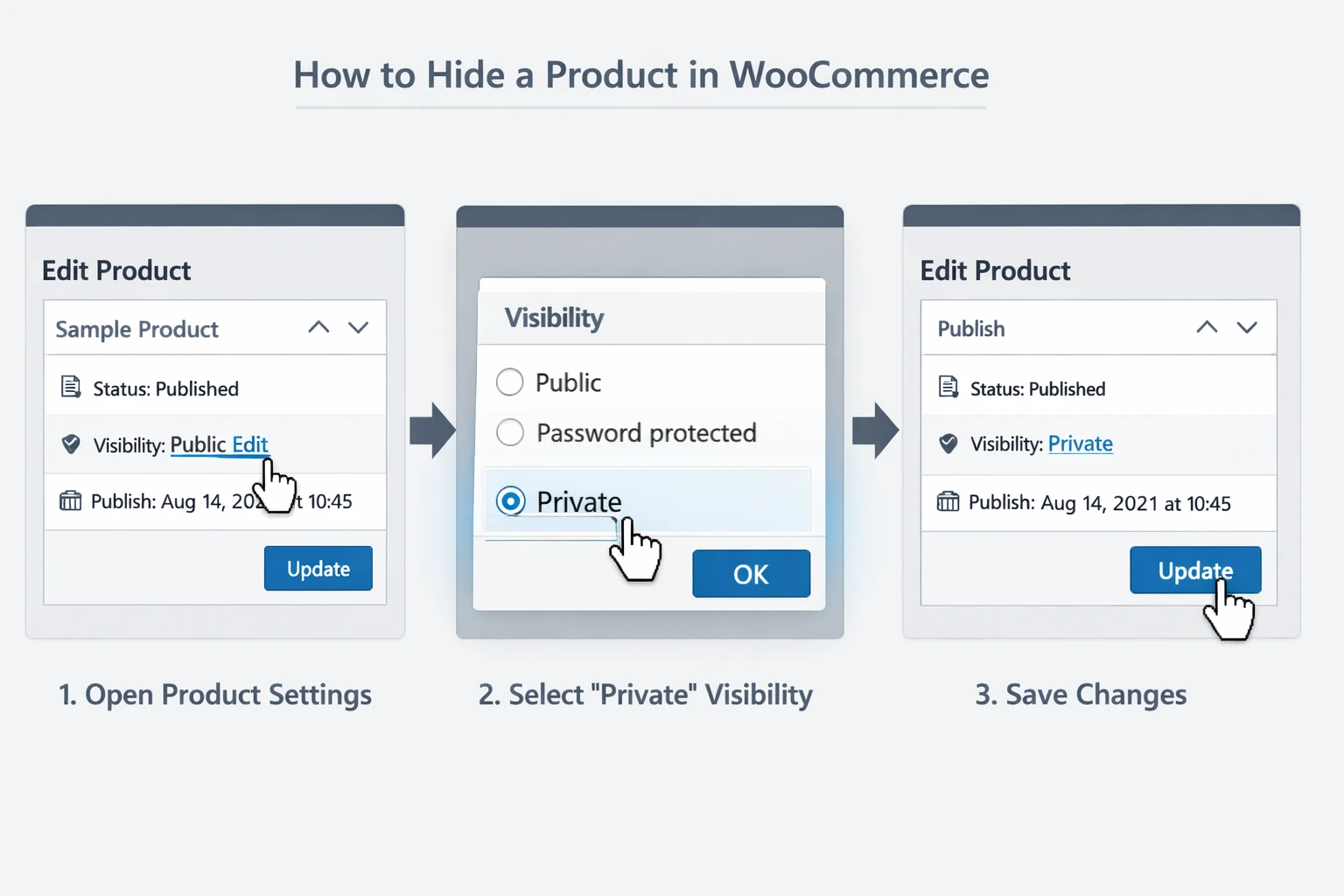
Hiding a WooCommerce product can mean removing it from browsing, restricting access, or preventing purchases. These are different goals. Choose the setting that matches your requirement rather than treating every visibility option as privacy protection.
A product hidden from the catalog can remain accessible through its direct link. Private visibility uses publication permissions, while customer-group restrictions require a suitable access-control setup. Before relying on any method, test it while logged out and with the relevant customer accounts.
Choose The Right Product Visibility Method
Start with the behavior you need. Catalog visibility, publication visibility, and customer-role rules are separate controls.
| Your Goal | Appropriate Approach | Important Limitation |
|---|---|---|
| Remove a product from normal browsing | Catalog visibility: Hidden | The direct product page remains accessible. |
| Keep a product private | Publication visibility: Private | Access depends on user permissions. |
| Reserve products for approved buyers | A configured role-based access extension | Test every allowed and excluded role. |
| Display products without allowing purchases | A separate purchase-restriction or catalog-mode setup | Removing a button alone does not prove purchases are blocked. |
Do not use catalog hiding as a substitute for access restrictions.
Using Private Product Status For Restricted Access
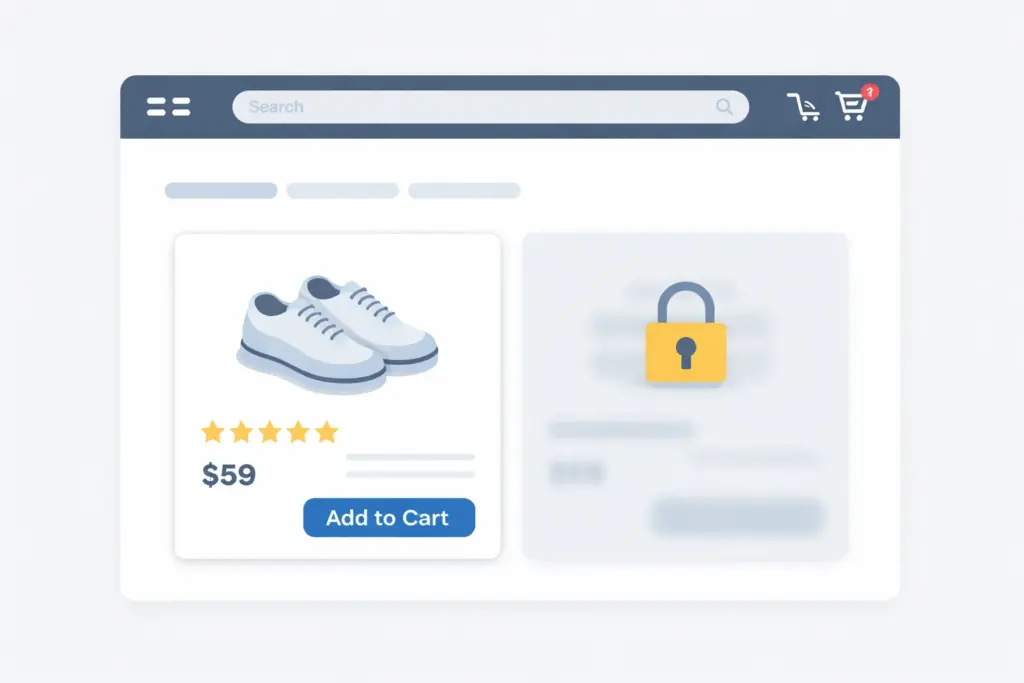
One of the simplest ways to hide products is by setting them to private. This option ensures that only authorized users can view the product. When learning how to hide private products from WooCommerce store, private status is useful for internal items or products meant for specific clients. Once a product is marked as private, it is removed from public listings and search results. This method does not require additional tools and can be implemented quickly. However, it is important to manage user roles carefully to ensure that only the right people have access. This approach works well for stores that need basic control over product visibility without complex customization.
Hide A Product From Shop And Search Listings
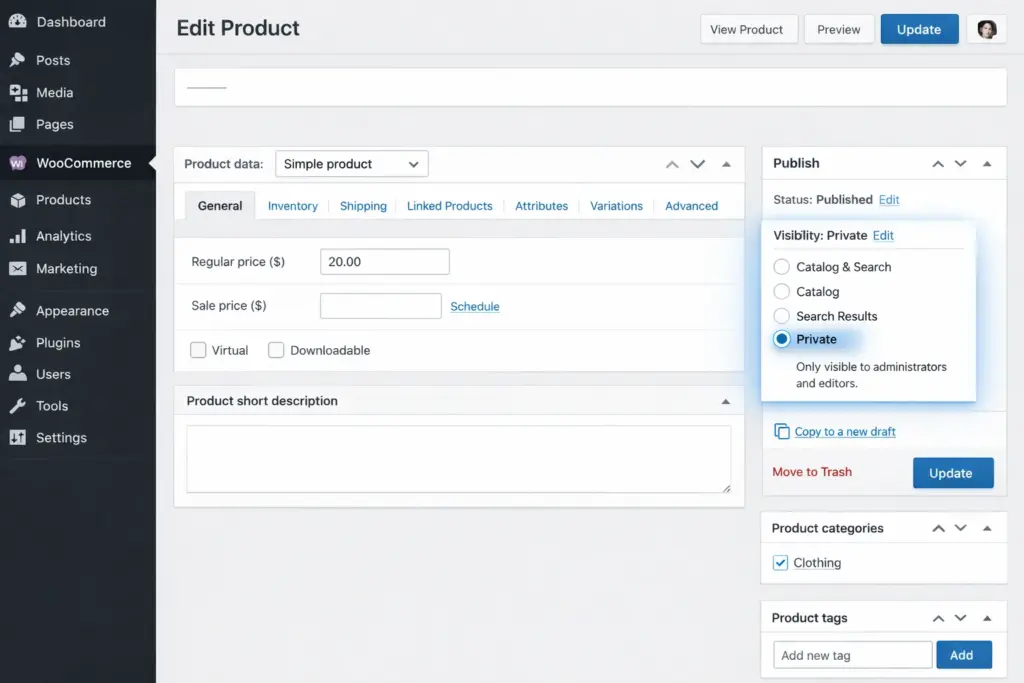
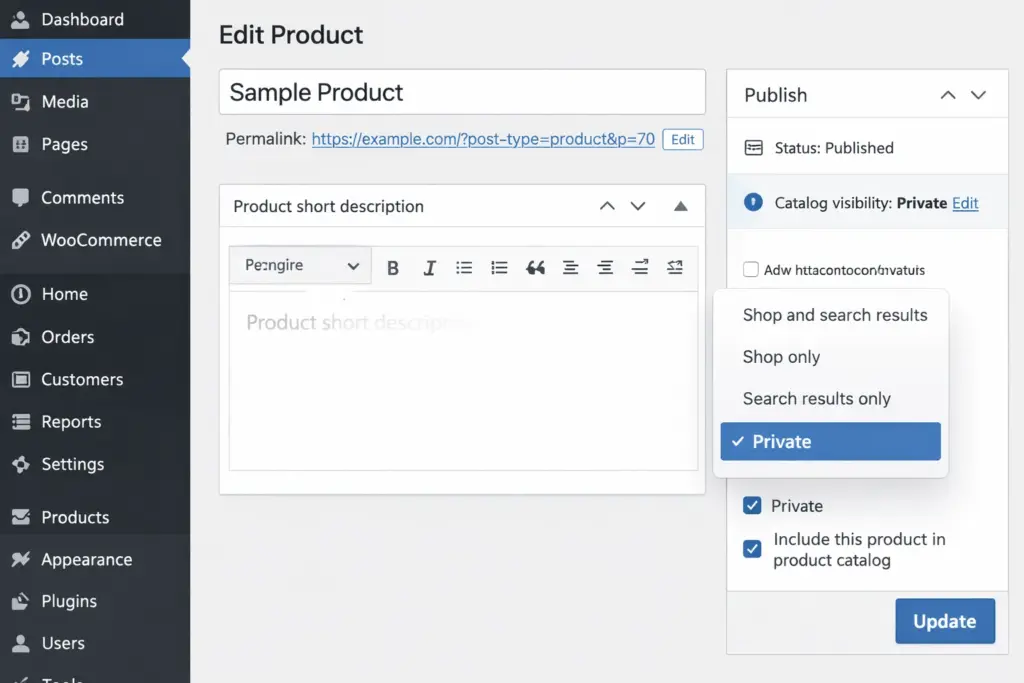
In the documented product editor:
- Open Products → All Products.
- Edit the product.
- Find Catalog visibility in the Publish panel.
- Select Hidden.
- Save with Update.
This setting leaves the single product page available. Use it when direct-link access is acceptable. Check custom product grids, search tools, and other discovery features separately. Editor layouts can differ when themes or builders replace the standard interface.
Using User Roles To Control Product Access
User roles provide another layer of control for product visibility. Different roles, such as customer, subscriber, or wholesale buyer, can be assigned different access levels. When understanding how to hide private products from WooCommerce store, role-based access ensures that only specific users can view certain products. This method is particularly useful for stores that serve multiple customer groups. For example, wholesale customers may have access to products that are not available to regular buyers. Managing user roles allows store owners to create a personalized shopping experience. Businesses that focus on structured e-commerce systems often use WooCommerce Website Design to implement these features effectively.
Using Categories And Tags To Manage Visibility
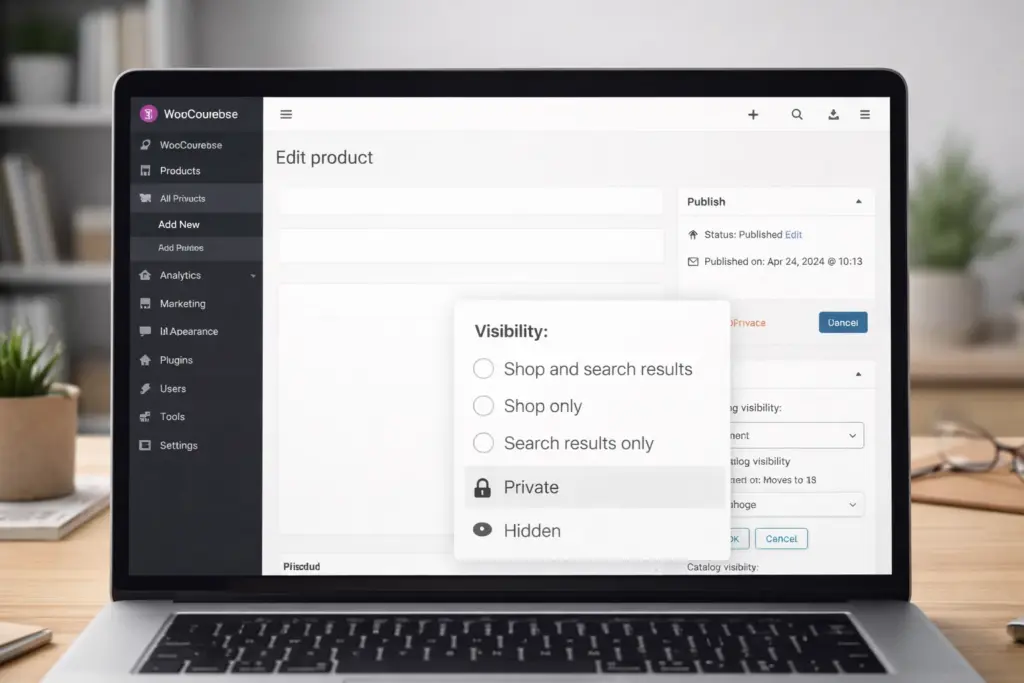
Product categories and tags can also be used to control visibility. By organizing products into specific categories, store owners can hide entire groups of products from public view. When learning how to hide private products from WooCommerce store, this method helps manage large catalogs efficiently. Categories can be excluded from menus or search results, which keeps private products hidden from general users. This approach is useful for stores with multiple product lines or customer segments. Proper categorization improves organization and makes it easier to manage product visibility. It also supports better navigation for customers who are browsing the store.
Restrict Products By Customer Role
For wholesale or approved-customer access, use an extension that explicitly supports the required restrictions. One documented option is Products Visibility By User Roles. Its official configuration guide describes global visibility rules and rules for individual user roles.
The extension adds WooCommerce → Product Visibility settings. Global rules address guests and registered customers; role rules provide Show and Hide options. Review those options carefully because their effects differ. Configure the intended audience, then verify browsing, search, direct links, and purchase access with separate accounts. These are extension features, not default WooCommerce role settings.
Performance And SEO Considerations
Product visibility also affects website performance and search visibility. Showing too many products can slow down your site and make it harder for users to navigate. When learning how to hide private products from WooCommerce store, optimizing visibility can improve performance. Search engines also benefit from a clear structure, as it helps them understand which pages are important. Removing unnecessary products from public listings can improve crawl efficiency and ranking potential. According to Forbes, user-focused design and performance optimization are key factors in online success. Managing product visibility supports both performance and SEO goals.
Test Each Method With Separate Accounts
Repeat the checks below for every visibility method you use. Record the actual result and compare it with the intended behavior. A result from an administrator account cannot substitute for a customer test.
| Visitor Type | Shop And Category Listings | Store Search | Direct Product URL | Purchase Attempt |
|---|---|---|---|---|
| Guest | Record result | Record result | Record result | Record result |
| Regular customer | Record result | Record result | Record result | Record result |
| Intended customer role | Record result | Record result | Record result | Record result |
| Administrator | Record result | Record result | Record result | Record result |
Use separate browser sessions and account for caching when checking results. Also test relevant custom search, filters, related-product displays, and previously saved links. Document unexpected behavior before treating the setup as complete.
Conclusion
Choose product visibility settings according to the result you need. Hidden catalog visibility, Private publication visibility, role-based restrictions, and purchase restrictions solve different problems. None should stand in for another without checking the behavior.
Test browsing, search, direct links, and purchasing with the relevant accounts before relying on a configuration. Best Website Builder Group can help you assess a WooCommerce setup against your store’s requirements.