One of the most valuable features inside Webflow is the ability to preview changes before they go live. Many designers, developers, and business owners search how to see preview before publishing Webflow because they want to test layouts, interactions, and responsiveness without affecting the live website. Previewing allows teams to identify visual issues, broken links, spacing problems, or animation errors before visitors ever see them. This process is especially important for businesses that rely on professional presentation and user experience to generate leads or sales. A single mistake on a live website can reduce trust and hurt conversions. Webflow’s preview system gives users the ability to review changes safely, collaborate with clients, and refine designs before publishing. When you understand how to see preview before publishing Webflow properly, you create a smoother development process and reduce the risk of launching unfinished or broken pages.
How Webflow Preview Mode Works
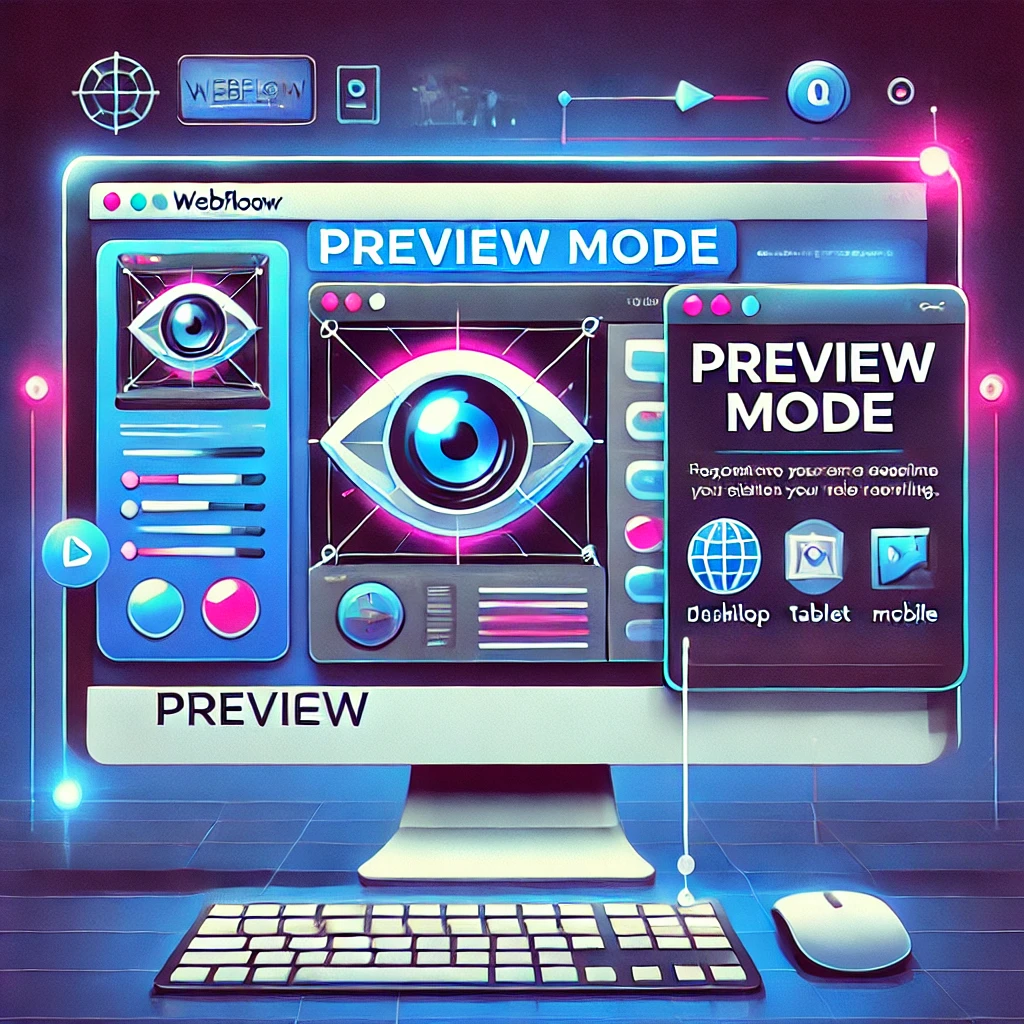
Webflow includes a built-in preview mode directly inside the Designer interface. This feature allows users to interact with pages as if they were live while still working in a protected editing environment. When exploring how to see preview before publishing Webflow, the preview mode becomes the first tool most users rely on. By clicking the preview icon inside the Designer, users can test buttons, menus, animations, hover effects, and scrolling interactions. Unlike static editing mode, preview mode simulates how visitors will experience the website. This makes it easier to identify issues before publishing changes publicly. Because the preview exists inside the Webflow environment, designers can quickly switch between editing and testing without leaving the platform. This streamlined workflow improves efficiency and helps maintain consistency across projects.
Using Webflow Staging Domains For Safe Testing
One of Webflow’s most useful features is the ability to publish changes to a staging domain before updating the live website. When learning how to see preview before publishing Webflow, staging domains provide a safe environment for testing and collaboration. Webflow automatically generates a webflow.io domain where users can publish draft changes without affecting the main website. This allows businesses to review updates, collect feedback, and test functionality before making changes public. Staging environments are especially useful for agencies, teams, and ecommerce businesses that need approval workflows before launch. Sharing a staging link with clients creates a more organized review process and reduces the risk of accidental publishing errors. Businesses that prioritize polished user experiences often combine structured workflows with professional Website Redesign strategies to maintain quality across every stage of development.
Testing Responsive Design Across Devices
Modern websites must perform consistently across desktops, tablets, and smartphones. Webflow includes responsive breakpoints that allow designers to preview layouts on multiple screen sizes before publishing. When understanding how to see preview before publishing Webflow, responsive testing becomes essential because mobile traffic now represents a major portion of web usage. Designers can switch between breakpoints inside the Designer to identify layout issues, overlapping elements, spacing inconsistencies, or text wrapping problems. Responsive previewing ensures that websites remain usable and visually appealing on all devices. Without proper testing, design flaws may only become visible after launch, which can hurt user experience and reduce engagement. Consistent responsive testing improves accessibility, navigation, and overall website quality.
Using Browser Developer Tools Alongside Webflow Preview
Many developers combine Webflow preview mode with browser developer tools to perform more advanced testing. When exploring how to see preview before publishing Webflow, tools such as Chrome DevTools help identify performance issues, script conflicts, and rendering problems that may not appear immediately inside the Designer. Browser developer tools allow users to inspect page speed, monitor console errors, and simulate mobile devices more precisely. These tools also help diagnose issues related to third-party integrations, custom code, or embedded scripts. Advanced testing is particularly important for larger websites that include animations, forms, ecommerce features, or external services. Businesses focused on performance and scalability often pair advanced testing workflows with Technical SEO Services to improve loading speed and user experience. Combining preview mode with developer tools creates a more reliable and professional launch process.
How Previewing Improves Team Collaboration
Preview systems are not only useful for developers. They also improve collaboration between designers, marketers, clients, and content teams. When learning how to see preview before publishing Webflow, collaboration becomes one of the biggest advantages of staging and preview environments. Teams can review content updates, visual changes, and navigation structures before publishing anything publicly. This reduces confusion and prevents unnecessary revisions after launch. Clients can provide feedback using staging links instead of reviewing unfinished work directly on the live website. Marketing teams can verify calls to action, forms, and campaign pages before traffic is sent to them. A structured preview process keeps projects organized and ensures that everyone involved has visibility into the final result before publication.
Common Mistakes Users Make When Previewing
Even with Webflow’s powerful tools, users still make common previewing mistakes that can create problems after launch. When researching how to see preview before publishing Webflow, many beginners assume that preview mode automatically reflects every real-world scenario. Some users fail to test websites across multiple browsers, which can create compatibility issues. Others only preview desktop layouts and ignore mobile responsiveness entirely. Caching can also create confusion because staging updates may not appear immediately unless the browser is refreshed properly. Another common issue involves publishing directly to the live domain instead of the staging environment, which can accidentally expose unfinished changes to visitors. Careful testing and organized workflows help reduce these mistakes and improve overall website quality.
Why Previewing Supports Better SEO And User Experience
Previewing websites before launch is not only about design quality. It also affects SEO and user experience. Broken layouts, missing metadata, or nonfunctional links can reduce search visibility and frustrate visitors. When understanding how to see preview before publishing Webflow, testing becomes an important part of quality assurance for both users and search engines. Previewing allows businesses to verify heading structures, mobile usability, internal linking, and page speed before publishing changes publicly. According to Google Search Central, websites should prioritize usability and technical quality to improve search performance. Identifying issues before launch reduces the risk of SEO problems and improves the overall browsing experience.
Best Practices For Previewing Webflow Projects
Creating a consistent preview workflow helps teams avoid mistakes and maintain quality across projects. Businesses should preview all layouts across multiple devices, test forms and interactive elements, and verify navigation before publishing updates. When exploring how to see preview before publishing Webflow, businesses should also review typography, image scaling, loading speed, and embedded integrations carefully. Large projects benefit from structured checklists that guide the review process before launch. Testing should include multiple browsers and real mobile devices whenever possible. Organized preview workflows improve efficiency and reduce the likelihood of costly post-launch fixes. A strong quality assurance process creates more polished websites and improves user confidence.
Conclusion
Learning how to see preview before publishing Webflow helps businesses and developers create more reliable, professional, and user-friendly websites. From built-in preview mode and staging domains to responsive testing and browser diagnostics, Webflow provides multiple tools for reviewing changes safely before launch. A structured preview process reduces mistakes, improves collaboration, and strengthens both user experience and SEO performance. Businesses that prioritize polished design and technical quality often work with experienced teams like Best Website Builder Group to build scalable websites that perform consistently across devices and deliver stronger long-term results.