WordPress is a content management system that allows you to create, customize, and manage websites without advanced coding skills. You can use it to publish blog posts, build business pages, upload images, and add functionality through plugins. Understanding how to use WordPress starts with installing the software, exploring its dashboard, selecting a theme, and creating website content.
WordPress supports personal blogs, business websites, portfolios, and online stores. Its flexible design tools make it suitable for beginners and experienced developers. This guide explains the essential features and practical steps needed to create and maintain your first WordPress website.
WordPress And Its Main Features
WordPress is an open-source content management system that helps users create and organize website content. It provides a dashboard where you can manage pages, blog posts, images, themes, plugins, and user accounts. Unlike building a website entirely through code, WordPress allows you to complete many tasks through visual editing tools. You can change layouts, publish content, and manage navigation without modifying the underlying programming files.
One important distinction involves WordPress.org and WordPress.com. WordPress.org provides the software you can install on compatible hosting, while WordPress.com offers a hosted website service. Both use WordPress technology, but their hosting arrangements and available features differ. Self-hosted WordPress generally provides greater control over plugins, themes, and development. Beginners learning how to use WordPress should understand these differences before selecting a platform.
Choosing Hosting And Installing WordPress
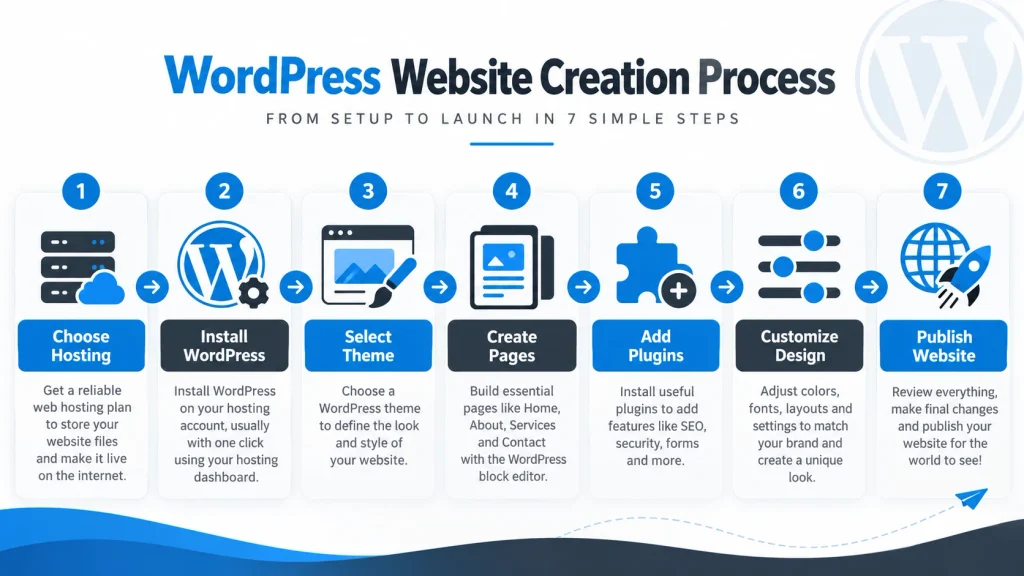
Before creating a self-hosted WordPress website, you need a domain name and compatible web hosting. The domain represents your website address, while hosting stores its files and database. Choose a hosting provider that supports current WordPress requirements, HTTPS, and reliable backups. Many hosting companies offer automated WordPress installation, eliminating the need to configure the database manually.
After purchasing hosting, open your hosting control panel and locate the WordPress installer. Select your domain, complete the installation settings, and create an administrator account. Once installation finishes, visit yourdomain.com/wp-admin to access the login screen. Enter your administrator credentials to open the dashboard. Next, review the website title, timezone, and permalink settings. Choose a readable permalink structure before publishing content. These initial settings establish a practical foundation for future website management.
Exploring The WordPress Dashboard
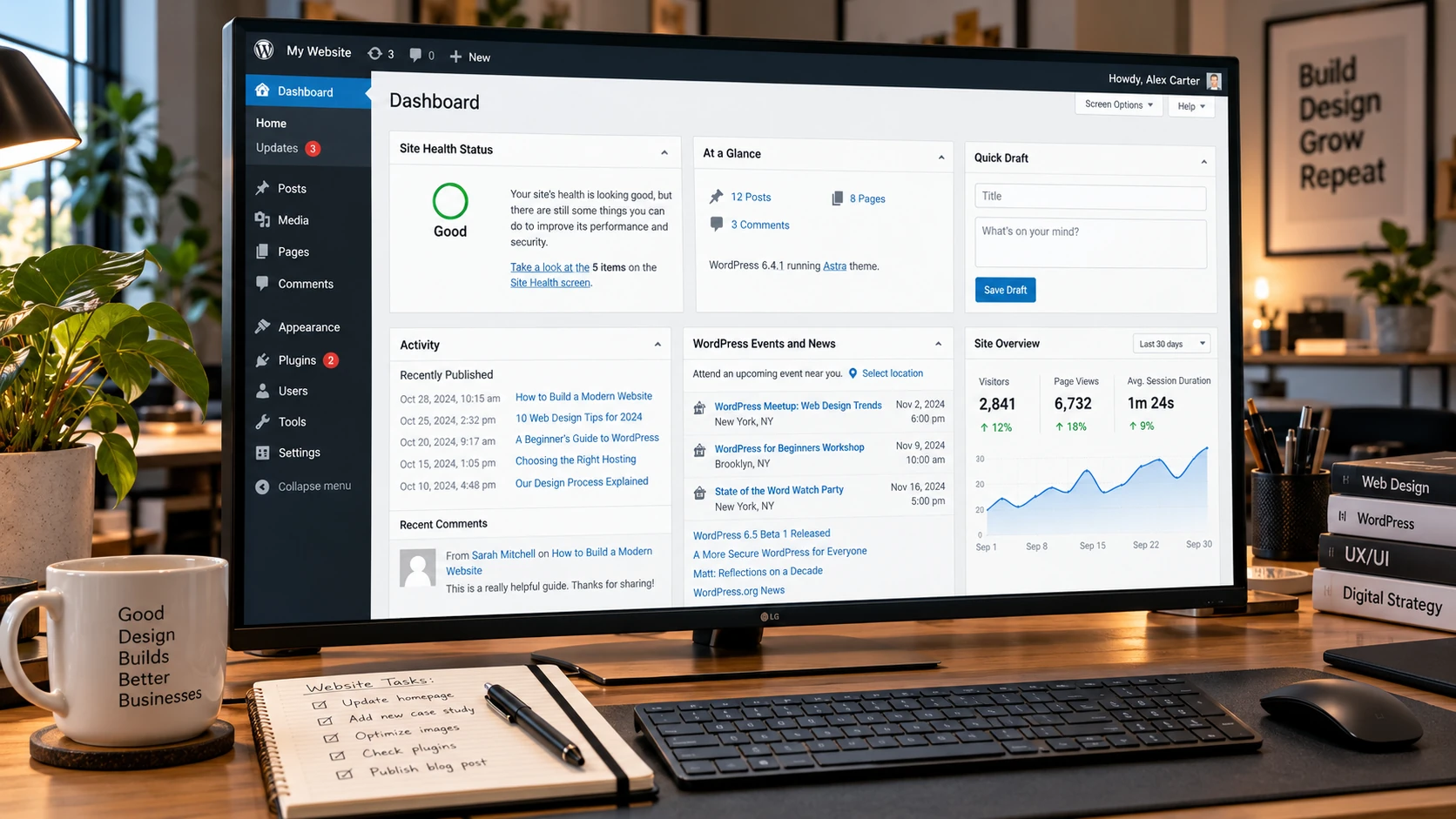
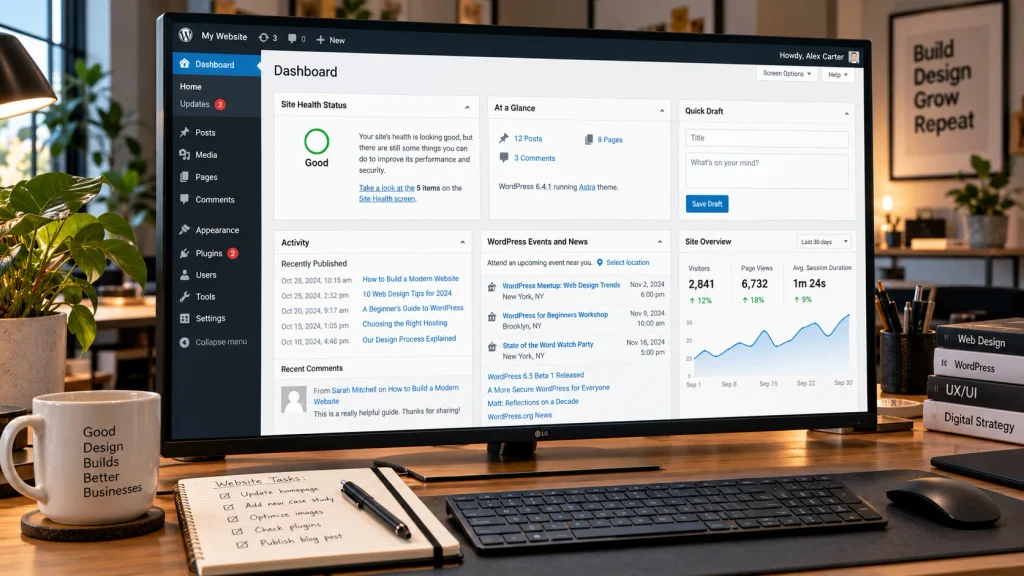
The WordPress dashboard is the main control center for managing your website. After logging in, you will see a navigation menu containing different administration options. Understanding these sections makes everyday website management considerably easier. The menu may include additional items when you install plugins or custom themes.
The following table explains the main dashboard sections and their purposes.
| Dashboard Section | Main Function |
|---|---|
| Posts | Create and manage blog articles |
| Media | Upload and organize images and files |
| Pages | Create static website pages |
| Appearance | Manage themes and design settings |
| Plugins | Install and manage website features |
| Users | Control user accounts and permissions |
| Settings | Configure important website options |
When practicing how to use WordPress, spend time exploring these sections before modifying advanced settings. Open the Pages area to view existing pages and visit Media to understand file management. The official WordPress documentation explains the administration screens and their functions. Familiarity with the dashboard helps prevent configuration mistakes and improves your confidence when managing content.
Selecting And Customizing A WordPress Theme
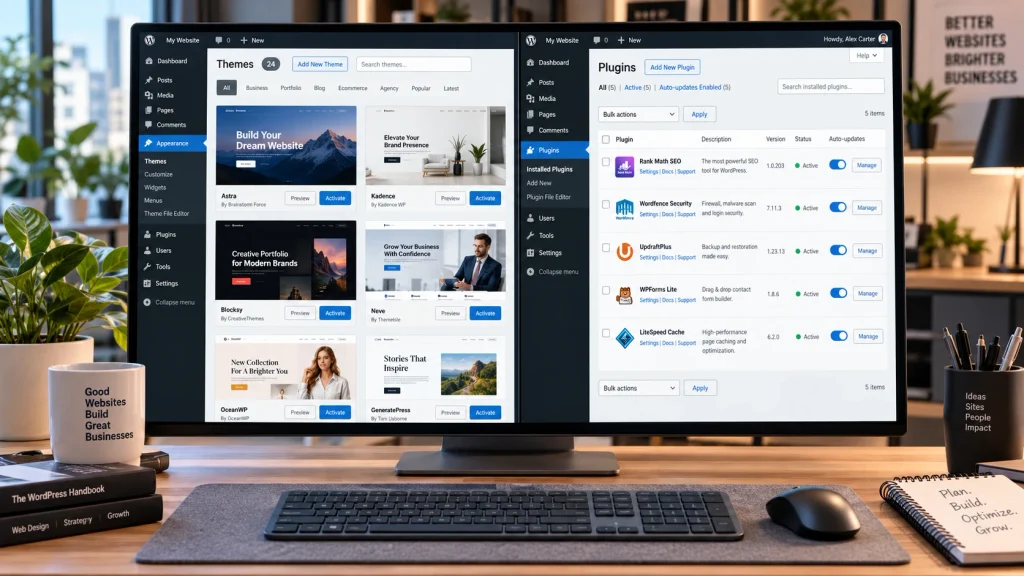
A WordPress theme controls the website’s visual appearance, including typography, layouts, colors, and design templates. To install one, open Appearance > Themes and select Add New Theme. Browse the available options, preview a suitable design, and install it. After activation, the theme determines the starting appearance of your website. Choose a lightweight, responsive theme that supports your required features and receives regular updates.
Theme customization depends on whether you use a block theme or a classic theme. Block themes typically provide design controls through Appearance > Editor, including site templates and global styles. Classic themes may offer Appearance > Customize and other theme-specific settings. You can also use compatible page builders for additional layout control. Understanding how to use WordPress themes helps you maintain consistent branding across pages. Businesses requiring customized layouts can explore web design services for professional website design and responsive styling.
Creating Pages, Posts, And Navigation Menus
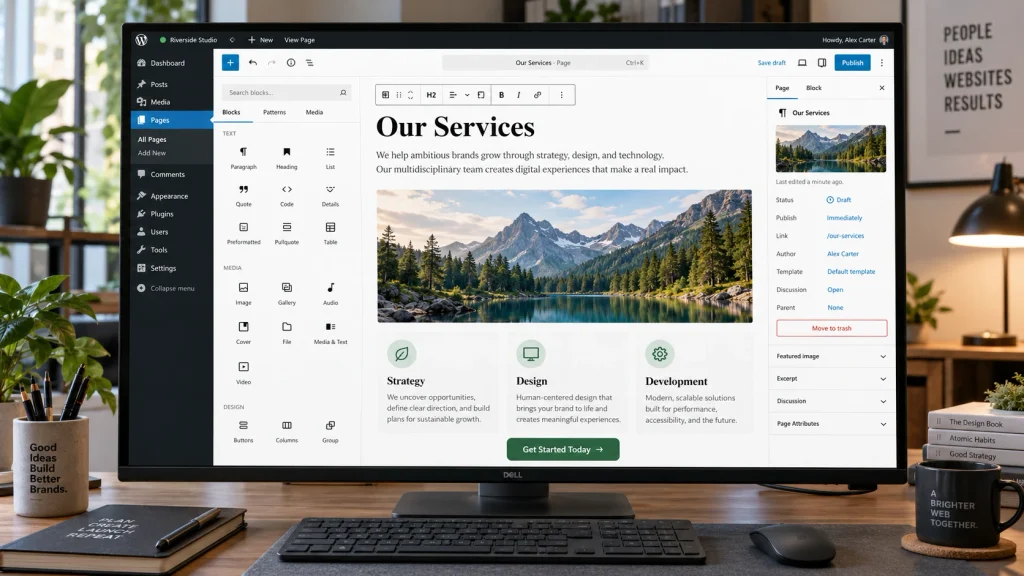
Pages and posts serve different purposes within WordPress. Pages usually contain permanent information, such as Home, About, Services, and Contact. Posts primarily support regularly published content, including articles and updates. To create a page, open Pages > Add New Page, enter a title, and add content through the editor. WordPress uses blocks for common elements such as headings, paragraphs, images, columns, and buttons.
To publish a blog article, navigate to Posts > Add New Post. Add the title, write the content, choose categories, and assign a featured image when appropriate. Preview the article before publishing to confirm that formatting appears correctly. Navigation menus depend on your theme. Block themes commonly use the Navigation block within the Site Editor, while classic themes may provide Appearance > Menus. When learning how to use WordPress, creating sample pages and posts offers valuable practice with these fundamental tools.
Installing Plugins And Adding Website Features
Plugins extend WordPress functionality without requiring you to develop every feature independently. Common plugin categories include contact forms, search engine optimization, security, backups, caching, and ecommerce. To install a plugin, navigate to Plugins > Add New Plugin and search for the required feature. Review its description, compatibility information, and maintenance history before installation. Then, install and activate the plugin to access its settings.
Avoid installing unnecessary plugins because each additional extension introduces maintenance requirements and potential compatibility issues. Select reputable options and remove unused software. For example, a service website may need a contact form and backup solution, while an online store requires e-commerce functionality. Some projects also need custom applications or API integrations. Professional web development services can support these advanced requirements. A carefully selected plugin collection helps keep the website manageable and functional.
Managing SEO, Security, And Website Performance
Search engine optimization helps search engines understand your website’s information. Start by creating useful content, descriptive page titles, logical headings, and relevant internal links. Review Settings > Reading to ensure your public website does not accidentally discourage search engine indexing. SEO plugins can assist with metadata and certain technical settings, but they cannot guarantee rankings. Regularly update articles and make sure important pages provide accurate information.
Security and performance require attention as well. Keep WordPress, themes, and plugins updated to reduce known vulnerabilities. Use strong passwords, appropriate user permissions, HTTPS, and dependable backups. Compress large images and configure suitable caching to improve loading performance. When understanding how to use WordPress for business websites, these maintenance practices are just as important as creating attractive pages. A reliable website should remain secure, accessible, and responsive as its content grows.
Publishing, Updating, And Maintaining Your Website
Before launching your website, review every important page carefully. Check navigation links, contact forms, image quality, and mobile layouts. Preview pages on smartphones and desktop computers to identify alignment or spacing problems. Confirm that your homepage displays the intended content under Settings > Reading. You should also verify that search engines can access the pages you want indexed. After completing these checks, publish the remaining content and connect your preferred domain if necessary.
Website management continues after launch. Update outdated information, monitor performance, and maintain regular backups. Review plugin updates before applying significant changes, particularly on business websites. Testing updates on a staging website can help prevent unexpected problems. Continue checking contact forms, navigation, and interactive features. Learning how to use WordPress effectively includes ongoing improvement rather than simply publishing the initial website. Regular maintenance protects your work and keeps the visitor experience consistent.
Conclusion
Understanding how to use WordPress allows beginners to create and manage websites with greater confidence. The process begins with choosing hosting, installing WordPress, and exploring the dashboard. From there, you can customize themes, create pages, publish articles, and add essential functionality through plugins.
Successful WordPress websites also require regular attention to security, SEO, performance, and content accuracy. Testing before publication and maintaining the website afterward helps prevent common problems. At Best Website Builder Group, businesses can access professional website design and development solutions. These services help create customized WordPress websites that support business requirements and long-term growth.