
Learning how to change Shopify inventory location to 3rd party fulfillment is a critical step for growing eCommerce businesses. As stores scale, inventory management often moves beyond in-house storage to warehouses, fulfillment centers, dropshipping suppliers, or logistics partners. Shopify supports this transition, but it must be configured correctly to prevent overselling, shipping errors, and reporting issues.
This article explains how Shopify inventory locations work, why third-party locations matter, and how to properly assign inventory so your store remains accurate, scalable, and efficient.
Understanding Inventory Locations in Shopify
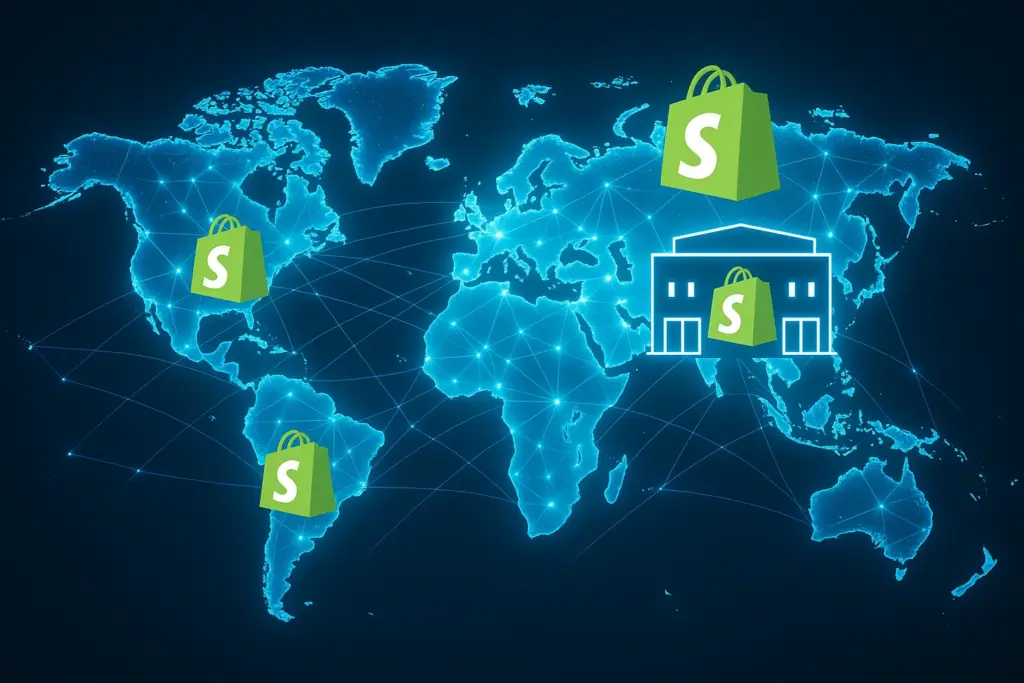
Shopify uses inventory locations to track where products are physically stored. Each location represents a place where inventory exists and from which orders can be fulfilled.
A location can be:
- A retail store
- A warehouse
- A fulfillment center
- A third-party logistics provider
- A dropshipping supplier
By default, Shopify assigns products to your primary location. When inventory moves to a third party, that location must be added and configured correctly.
Understanding this system is essential before learning how to change Shopify inventory location to 3rd party fulfillment.
Why Move Inventory to a Third-Party Location
Businesses move inventory to third-party locations for many reasons. Common motivations include faster shipping, lower storage costs, nationwide delivery coverage, and operational efficiency.
Third-party fulfillment allows store owners to focus on marketing and sales while logistics are handled externally. However, this convenience only works if inventory data remains accurate inside Shopify.
Incorrect location setup can lead to stock mismatches, unfulfilled orders, or customers purchasing items that are no longer available.

Adding a Third-Party Inventory Location in Shopify
Before you can change inventory assignment, the third-party location must exist in Shopify.
To add a new location:
- Go to Settings in the Shopify admin
- Select Locations
- Click Add location
- Enter the name and address of the third-party provider
- Save the location
Once added, Shopify recognizes this location as a valid inventory source. This step is required regardless of whether fulfillment is manual or app-based.
Assigning Inventory to a Third-Party Location
After adding the location, inventory must be assigned properly.
When learning how to change Shopify inventory location to 3rd party, this is where many mistakes occur. Inventory is not automatically moved just because a new location exists.
For each product:
- Open the product in Shopify
- Scroll to the inventory section
- Enable inventory tracking if not already active
- Assign quantities to the third-party location
- Reduce or remove quantities from the original location if inventory has physically moved
This ensures Shopify reflects reality and prevents duplicate stock counts.

Bulk Updating Inventory Locations
For stores with large catalogs, updating products one by one is inefficient. Shopify supports bulk inventory adjustments through:
- Bulk editor tools
- CSV imports
- Third-party inventory apps
Bulk updates allow you to assign inventory to a third-party location at scale while maintaining accuracy. This is especially important for seasonal transitions or warehouse migrations.
Setting Fulfillment Priority
Shopify determines which location fulfills an order based on inventory availability and fulfillment priority.
If multiple locations carry the same product, Shopify may split orders across locations unless configured otherwise. To avoid confusion, fulfillment priorities should be reviewed.
You can control fulfillment behavior by:
- Adjusting location priority
- Limiting which locations fulfill online orders
- Using fulfillment services or apps that manage routing
This step is critical when transitioning to third-party fulfillment.
Connecting Third-Party Fulfillment Apps
Many third-party providers integrate directly with Shopify through apps. These apps often automate inventory syncing, order routing, and fulfillment updates.
When using an app:
- Shopify may automatically create a fulfillment service location
- Inventory updates may be handled externally
- Manual inventory adjustments may be restricted
Understanding how the app manages inventory is essential before making changes. Improper manual adjustments can conflict with automated systems.
Changing Fulfillment Settings for Products
Products can be assigned to specific fulfillment services. This determines who fulfills the order when it is placed.
When switching to third-party fulfillment:
- Products should be assigned to the correct fulfillment service
- In-house fulfillment should be disabled if no longer used
- Test orders should be placed to confirm routing
This ensures orders flow to the correct provider without intervention.

Managing Inventory Visibility Across Sales Channels
Shopify allows inventory to be available across multiple sales channels, such as online store, POS, or marketplaces.
When inventory moves to a third party, confirm that:
- The correct location is enabled for online sales
- Inactive locations are not overselling
- Channel-specific availability matches reality
Misconfigured channels are a common source of inventory discrepancies.
Common Mistakes When Changing Inventory Locations
Many issues arise when merchants misunderstand how Shopify inventory locations work. Common mistakes include:
- Leaving inventory quantities in multiple locations
- Forgetting to assign products to the new location
- Ignoring fulfillment priority rules
- Manually adjusting inventory controlled by apps
- Failing to test order fulfillment
Avoiding these mistakes prevents customer frustration and operational headaches.
Inventory Reporting and Accuracy
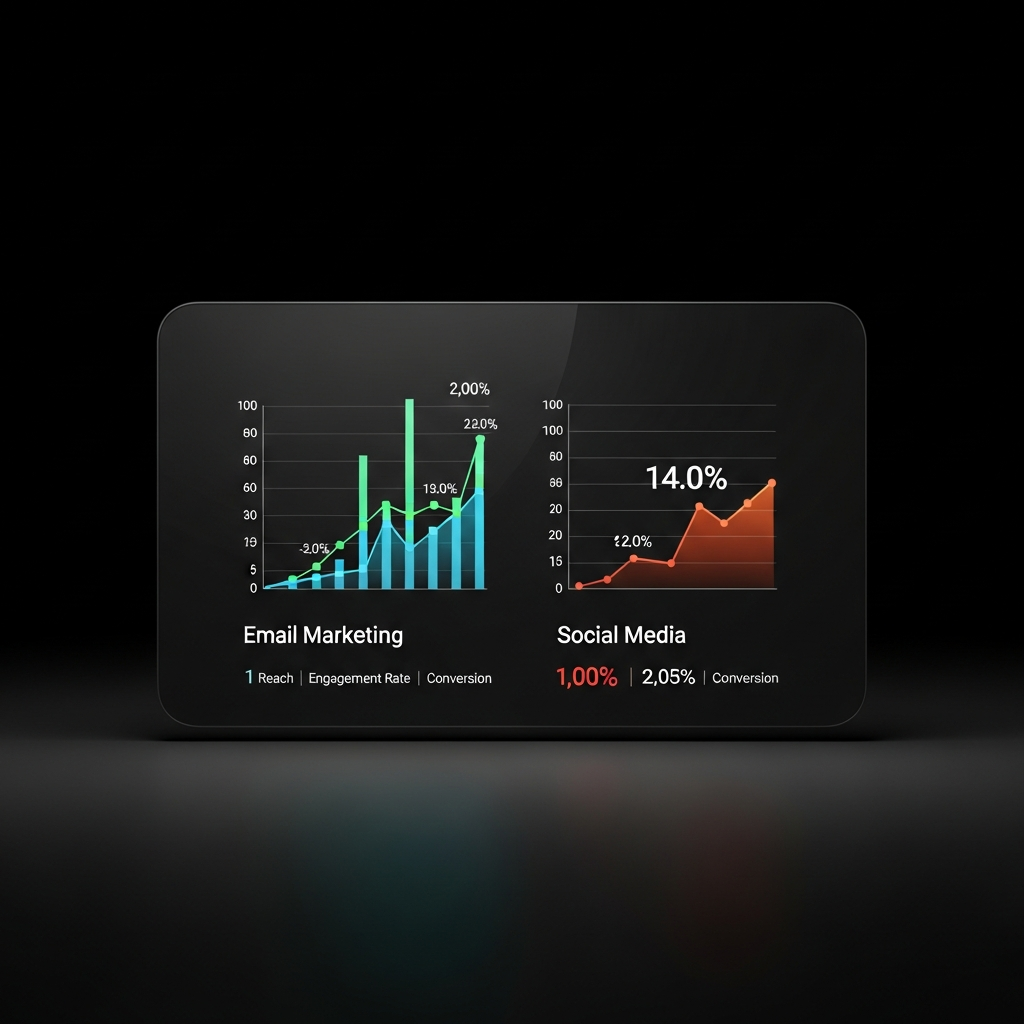
Once inventory is moved to a third-party location, reporting becomes even more important. Shopify provides inventory reports that help track stock levels across locations.
Regular audits ensure Shopify data matches the third-party provider’s records. Discrepancies should be addressed quickly to avoid overselling or missed fulfillment.
Accurate inventory reporting supports forecasting, purchasing, and customer satisfaction.
When to Use Multiple Third-Party Locations
Some businesses use more than one third-party provider. Shopify supports this, but complexity increases.
In these cases:
- Clear location naming is essential
- Fulfillment priorities must be carefully managed
- Inventory syncing must be reliable
- Customer shipping expectations must be clear
Multi-location setups require more planning but offer greater flexibility at scale.

Scaling With Third-Party Inventory
Changing inventory location is often part of a broader scaling strategy. As order volume grows, third-party fulfillment reduces operational bottlenecks and improves delivery speed.
Shopify’s location system is designed to support this growth, but only when configured intentionally.
At Best Website Builder Group, Shopify inventory setups are structured to scale without sacrificing accuracy or customer experience.
Conclusion
Understanding how to change Shopify inventory location to 3rd party fulfillment is essential for growing stores that want efficiency without chaos. Adding the correct location, assigning inventory properly, configuring fulfillment rules, and testing workflows ensures smooth operations.
When inventory data reflects reality, orders flow correctly, customers receive accurate availability information, and businesses can scale confidently.
With the right setup, third-party fulfillment becomes an advantage rather than a risk.
